FAQ
Read this page to get answers to Frequently Asked Questions
about Sweet Home 3D.
Installation
3D models import
Other features
Contributions
 Installation Installation
3D
models import
- I downloaded a 3DS model from the web, but Sweet Home 3D doesn't import it correctly and some parts of the model are
scattered. What can I do?
First, be sure to use at least the version 4.5 of Sweet Home 3D that improved 3DS format support. But it's
still possible that a few models are imported incorrectly with that version. Try to convert the 3DS files that don't work in OBJ files with FBX Converter, first converting 3DS files in FBX files, then
converting generated FBX files in OBJ files.
- How can I import 3D models in OBJ, DAE or 3DS format with the Mac App Store version of Sweet Home 3D?
For security reasons required by Apple, it's possible to import a 3D model in the Mac App Store version, only if it's stored in a ZIP
archive or if it's a file in KMZ format. If you create or download a 3D model in OBJ, DAE or 3DS format, you'll have to save first the file(s) of
this model in a ZIP archive that you'll be able to import in Sweet Home 3D afterwards. To achieve this, select the files of the 3D model in the
Finder (OBJ file + MTL file + possibly images, DAE file + images or 3DS file + images), and choose the File > Compress menu item to
create a ZIP archive containing selected files.
If you use Safari to download 3D models which are available as ZIP archives (like the
ones of the free models page), you should also know that the preferences of this browser propose an Open safe
files after downloading option that is selected by default; therefore, all downloaded ZIP archives will be automatically unzipped. If it's the
case, instead of creating again a ZIP achive from files unzipped by Safari, it's more handy to uncheck the Open safe files after downloading
option to download models directly in ZIP format.
- Does Sweet Home 3D support 3D models that use textures?
Yes from version 1.6. You may import the 3D model file directly or a
ZIP file that contains the 3D model file and its texture files. Note
that once imported, a 3D model file and the files depending on it (MTL
file, texture image files...) are copied in private directories of Sweet
Home 3D to let you move these files elsewhere or even delete them.
- How can I change the color of the different parts
of a model in OBJ format?
The OBJ file format is a text file format that is quite simple. From
its description at Java
3D web site, this
discussion and this
one available on Sweet Home 3D forums, you may change the color
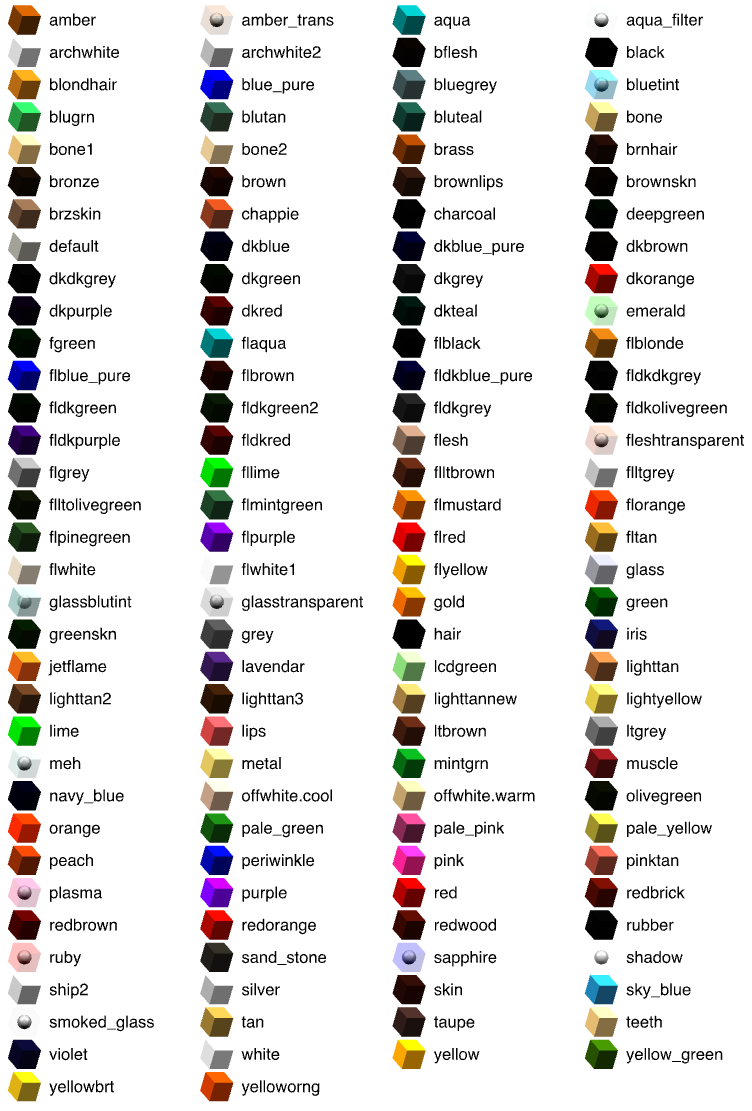
of the different parts of an OBJ model by adding usemtl colorName
rows in the file, where colorName is one of the color
described in this
document. From version 1.6, you may also describe model color and
texures in a MTL
file referenced by the OBJ
file with a mtllib mtlfile statement.
- How can I create a new category of furniture?
During the Import furniture wizard, you may choose the category
of an imported 3D model with an editable drop down list. Thus,
if you want to add an imported model to a new category, type a new category
name in the text field of this drop down list. If it doesn't exist,
it will be created.
- Which program can I use to create 3D model files?
You may use any program able to create or export 3D models in OBJ, DAE/Collada or
3DS format. Among the free programs, start with Art
of Illusion if you never used any 3D modeling program, because it's
quite easy to learn and use. Blender
is also a very popular program supported by a large community, but it's
much more difficult to learn. Both programs are able to export to OBJ
format and run under Windows, macOS and Linux.
- How can I transfer the furniture I imported on an
other computer?
Whether they come from the default catalog or were imported, all the
pieces of furniture you use in a home are saved in the matching SH3D
file. Thus you may transfer and open a SH3D file on any other computer
even if it runs under an other operating system.
On the other side, the pieces imported in the catalog of Sweet Home
3D are saved in private folders separate from program one to avoid losing
them during an upgrade of the program. If you want to transfer these
pieces to the Sweet Home 3D catalog of an other computer, you may use
ExportToSH3F-1.0.sh3p plug-in.
Once you installed this plug-in,
choose the new menu item Furniture > Export imported furniture
to SH3F... to create a SH3F file and import it on the other computer
with the Furniture > Import furniture library... menu item
(caution, this plug-in doesn't work with the Java
Web Start version of Sweet Home 3D).
If required, you may edit a SH3F file with the downloadable
Furniture Library Editor.
- I chose Furniture > Import furniture...
menu item to import a 3D model, but during the wizard, I got the message
Sweet Home 3D must exit now because of a fatal error in 3D rendering
system. What can I do?
This is a problem due to the configuration of your graphic card. Please
read the answer to the same question
in the Installation section. If it doesn't
solve your problem, you may also try to import
librairies of additional 3D models.
Other
features
- How can I create a roof on top of a house?
Sweet Home 3D supports the creation of ceilings seen from below,
but doesn't propose some simple way to create roofs yet. Nevertheless, you can
use various tricks to cover a house: if the roof is flat, you can draw rooms in a level matching
that roof.
If you want to add a sloping roof, you may assemble blue
slate roof,
red slate roof or polygonal
roof 3D models available at the 3D models
import page, as well as the ones available in 3D
Models Contributions Tracking System like Krams036's models
and OK Hoff's models.
From the version 5.5, you may also assemble boxes and triangles of the Miscellaneous category that you'll flatten
and rotate around their horizontal axis, like in the house demos available in the dialog box shown by
the File > New from demo menu item.
Finally, the Roof Generator plug-in developed
by Dorin Vatavu with the help of Daniele Lombardi is useful to create roofs with various slope angles.
- How can I create different stories or levels in a home?
From version 3.4, use the Plan > Levels > Add level menu item
to create new levels, then choose Plan > Levels > Modify level to adjust its elevation,
height and other attributes.
- How can I create round walls?
You may create round walls either with the Wall creation
tool, or afterwards with the wall modification pane or with a drag-and-drop of the indicator
displayed at the half of a wall. If you want to draw a round wall during its creation, keep
the ctrl key (alt key under macOS) pressed when you click a second time
at the end point of a new wall; an arc of a circle joining the two ends of the new wall
will appear, and you can modify the arc extent of the round wall by moving the mouse
pointer, until you click a third time. The angle of this arc extent
may be entered with the keyboard too, once you pressed the Enter
key, or ctrl + Enter (alt + Enter under
macOS) keys if you were already using keyboard mode to enter the
length of the wall. To modify the arc extent of a wall afterwards, double-click
on the wall and modify the value of the Arc extent field in its
wall modification pane.
- How can I change the opening side of a door or a window?
When magnestism is active, the opening side of a door or a window towards
the interior or the exterior depends on the side of the wall where you
drag and drop it. The location of the rotation axis of a door or a window
towards the left or the right may be reversed by double clicking on
it in the plan or the furniture list, then selecting the Mirrored
shape option in the furniture modification pane.
- Is it possible to manually set the rotation center of the 3D view in Aerial view mode?
In Aerial view mode, the observer can turn around his home in the 3D view to view
it from various angles. By default, this rotation is centered on the middle of
the bounding box which contains all the walls, rooms and furniture added to home,
and this center is automatically updated at each modification. This behavior ensures
the user always sees his home entirely with no way to get lost in the 3D view.
If you want to move this center of rotation, enable the Aerial view centered on selection
option in the preferences pane and select the object(s) in the plan around which
the aerial view will turn, or use the Virtual visit mode which lets you choose
any point of view. If you want to see some rooms hidden by walls in Aerial view mode,
you may also set the walls transparency in the modification pane of the 3D view.
- Importing a background image seemed to run correctly
but no image appears in plan. What is going on?
Check the size you chose during the second step of the Import background
image wizard. The entered value must match the size of the line
drawn below in the real life, not its size at screen or on the paper
you scanned. If the current unit is centimeter or inch, this value will be probably
much larger than 100.
- Sweet Home 3D refuses to save a file I created. How can I fix this issue?
Check that you have the permissions to write in the folder where you want to save that file.
If this is the case and your system is Windows, check also that its security settings don't forbid you
to save some files from Sweet Home 3D application, following
these instructions.
Under MacOS, ensure that Full Disk Access is granted to Sweet Home 3D in the Privacy tab
of Security & Privacy panel of System Preferences.
- Sweet Home 3D refuses to open a SH3D file I created,
or opens it incorrectly. Is there a way to repair it?
When Sweet Home 3D saves a home, it attempts to create first a temporary
file that replaces the previously saved file only once the temporary
file is successfully created and if there's enough disk space. This ensures that there's very little
chance that your previous SH3D file gets corrupted even if the last
save operation failed. Nevertheless, some users still report they can't
open their SH3D file. If this is your case, try to open your SH3D file with Sweet Home 3D 4.4 and
above, to check if the program can repair it. If it still can't open your file, please try
to describe to the developer
of Sweet Home 3D the circumstances of the last save operation (was
is successful?), whether the SH3D file was transferred or not by email,
ftp or with an USB key, what happens when you try to open the file that
causes problems, and join a compressed version of your SH3D file if
possible.
Finally, try next time to back up regularly your SH3D files, like you
should do for any document you spend hours on.
- Can I import a SH3D file in the Online version?
From version 4.4, you may import a SH3D file in the Online version or export a home from
the Online version to a SH3D file to edit it with Sweet Home 3D installed version.
Importing and exporting services are available only to the users who are
registered and logged in.
- The 3D view of Sweet
Home 3D is always black or shows twice
the same image. What can I do?
Under Windows, installing Java and running Sweet
Home 3D with DirectX generally solves this problem. Read also the
answer to this question in the
Installation section.
- Sweet Home 3D refuses to print the 3D view. What can
I do?
This is a problem due to the configuration of your graphic card that
can't create offscreen 3D images. Please read the answer to this question
in the Installation section.
- How can I improve the lighting of the 3D view?
Depending on your graphic card, the 3D view may look too bright or too
dark. You may adjust Light brightness in the pane displayed by
choosing 3D view > Modify.... If you want a more
photorealistic rendering of the 3D view, choose 3D view >
Create photo... from the menu and select the best quality available
in the displayed pane, after checking you use at least the
version
3.0 of Sweet Home 3D.
- How can I speed up the rendering process in photo
and video creation panes?
In the photo creation pane, computing an image at the two best
quality levels may take a few minutes, and in the video creation pane,
computing the video may take many hours. To speed up the rendering process,
try the following tips:
- choose Yafaray rendering engine in Renderer option,
- increase the max memory allocated
to Sweet Home 3D,
- create smaller images or videos, and/or compute them with a lower
quality,
- turn off useless lights,
- use less detailed 3D models,
- use texture images with a lower resolution,
- use a computer with a more powerful CPU (running at a higher frequency
and/or with more cores).
Note that the graphic card isn't used at all to compute images at the
two best quality levels, so using a better one won't help.
- Where are missing features listed?
You'll find requested features at this page
and in some discussions of Sweet
Home 3D forums.
Contributions
- How can I contribute to Sweet Home 3D?
You may contribute to Sweet Home 3D in many ways:
- How can
I contribute to the translation of Sweet Home 3D in an other language?
Localizing Sweet Home 3D in a language consists of the translation of:
This may be achieved by one or more persons and should take at least
four days of work.
Please, read the translation guide
and/or write to the developer
of Sweet Home 3D to receive more instructions about this process.
Thanks to Pencilart for her contribution
to the translation of this page.
| |
 |
|
 |
|
| © Copyright 2006-2024 eTeks - All rights reserved |
|